



Introduction
Capturing your screen—commonly known as taking a screenshot—is extremely useful in day-to-day life. Whether you want to save important information, report an issue, or share something quickly, screenshots make the job easy.
On mobile phones, screenshots are usually taken using gestures or button combinations. Similarly, on computers running Microsoft Windows, there are multiple quick and simple ways to capture your screen—not just the entire screen, but also selected areas or specific windows.
Let’s look at 5 easy ways to take screenshots on a Windows computer.
How to Take Screenshot on a Windows Computer
1. Using the PrtScr (Print Screen) Button

Pressing the PrtScr key captures the entire screen and copies it to the clipboard.
You can paste it into applications like Paint, Word, or even directly into a folder to save it.
2. Using Windows + PrtScr
Press Windows + PrtScr together to capture the entire screen.
Unlike the PrtScr key alone, this method automatically saves the screenshot in the Pictures → Screenshots folder and also copies it to the clipboard.
3. Using Alt + PrtScr
This shortcut captures only the active window instead of the full screen.
The screenshot is copied to the clipboard, and you need to paste and save it manually.
4. Using Windows + Shift + S
This is one of the most useful screenshot shortcuts.
Press Windows + Shift + S to open the snipping overlay, which allows you to select a specific portion of the screen. The selected area is copied to the clipboard and can be pasted or saved.
5. Using the Snipping Tool

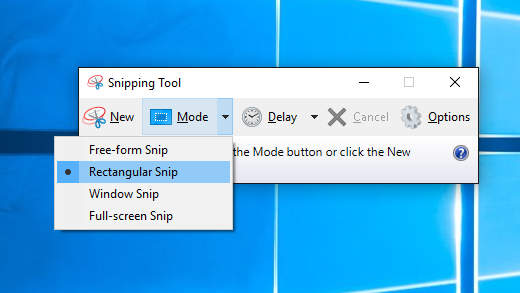
The Snipping Tool is a built-in Windows utility that offers multiple screenshot options.
You can open it using Windows + Shift + S or find it in the notification panel.
It provides the following capture modes:
- Free-form Snip – Draw any shape around the area you want to capture
- Rectangular Snip – Capture a rectangular area by dragging the cursor
- Window Snip – Capture a specific application window or popup
- Full-screen Snip – Capture the entire screen
All snips are copied to the clipboard and can be saved easily.
Conclusion
These are the 5 simple and effective ways to capture screenshots on a Windows computer. Depending on your need—full screen, active window, or selected area—you can choose the most suitable method and save time.